
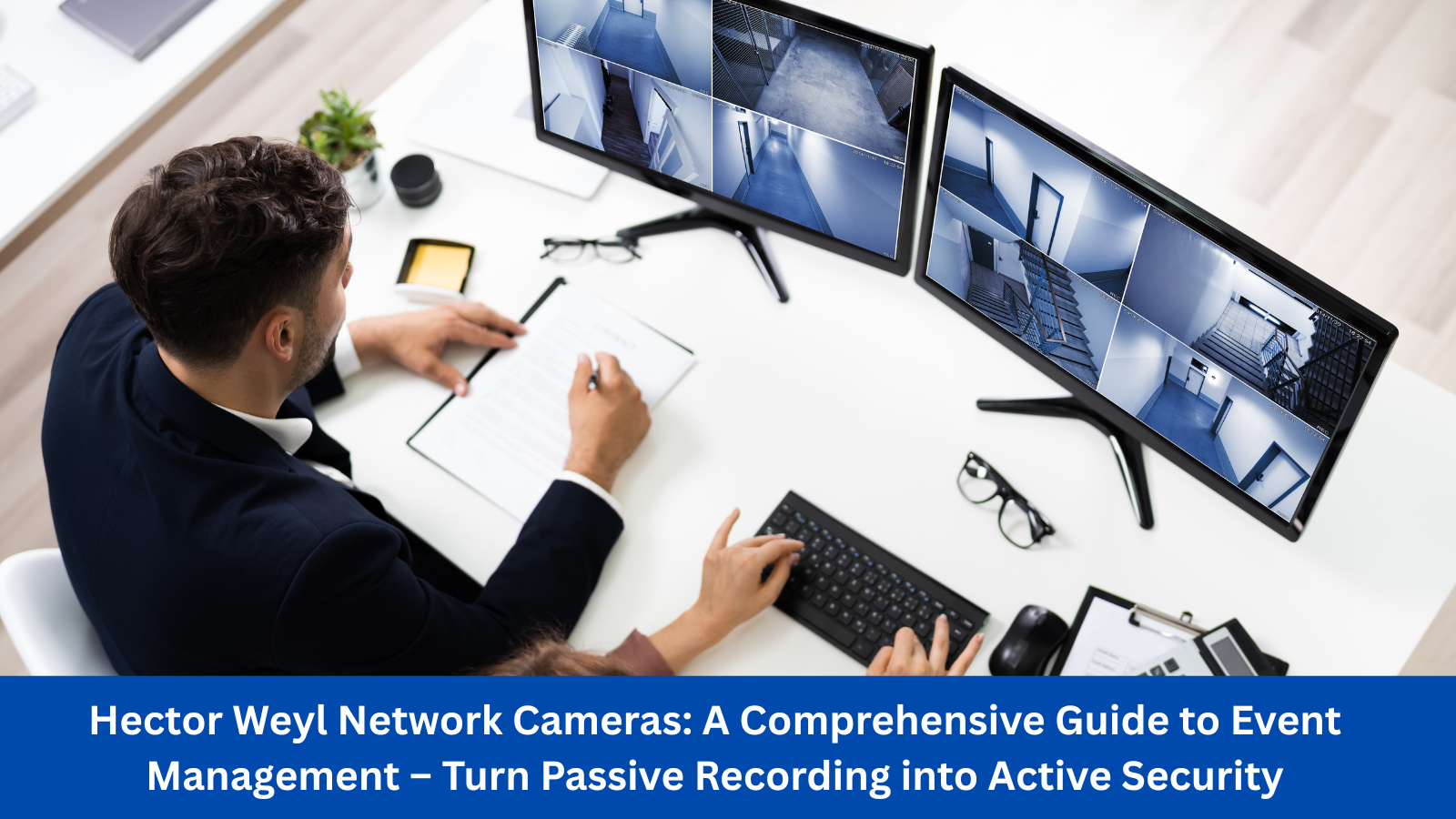
For most security setups, a camera that only records footage is incomplete. What matters is knowing when something happens—and responding fast. That’s where Event Management comes in. For Hector Weyl network cameras, Event Management is the "brain" that lets your camera detect specific events (like motion, tampering, or hardware errors) and trigger automatic actions (like push alerts, record,or alarms). It transforms your camera from a passive recording device into an active security tool that works 24/7 to keep you informed.

This guide breaks down everything you need to know about Event Management for Hector Weyl cameras, using their official 2024 product manual as the primary reference. We’ll cover what Event Management is, key event types, critical configuration components, step-by-step setup, troubleshooting common issues, and best practices for tailored security.
1. What Is Event Management, and Why It’s Essential for Hector Weyl Cameras
Event Management is a suite of features that lets you:
- Define "events": Specify what the camera should detect (e.g., someone walking into a restricted area, the lens being covered).
- Set "triggers": Define conditions that activate the event (e.g., motion lasting 2+ seconds, sensitivity level).
-
Assign "actions": Choose what the camera does when the event is triggered (e.g., send a push alert, start recording, sound a local alarm).

Without Event Management, you’d have to sift through hours of footage to find critical moments—a time-consuming, error-prone process. For Hector Weyl users, it’s the difference between "finding out about a break-in the next morning" and "getting an alert while the incident is still happening."
Key Event Types Supported by Hector Weyl Cameras
Hector Weyl’s 2024 manual outlines 5 core event types, each designed for specific security needs. Choose the ones that match your use case:
| Event Type | What It Detects | Ideal Use Cases |
|---|---|---|
| Motion Detection | Changes in the camera’s field of view (e.g., a person, vehicle, or animal moving). | Home security (front door), retail (shoplifting prevention), warehouse (after-hours trespassing). |
| Tampering Detection | Physical interference with the camera (e.g., lens covering, camera rotation, or power disruption). | Public areas (parking lots, street corners), high-security zones (server rooms). |
| Hard Drive (HDD) Error | Issues with the camera’s local storage (e.g., HDD full, corruption, or disconnection). | Any setup using local recording (avoids missing footage due to storage failures). |
| Network Disconnection | Loss of internet/LAN connectivity (camera can’t send data to NVR/VMS). | Remote sites (construction yards, rural warehouses) where connectivity is critical. |
| Line Crossing Detection | Objects crossing a predefined virtual line (e.g., a person crossing a fence, a vehicle entering a no-entry zone). | Perimeter security (factory fences), traffic monitoring (one-way streets). |
2. Core Components of Hector Weyl’s Event Management
To configure Event Management effectively, you need to understand its three key components—all accessible in Settings > Event Management on the camera’s web interface. These components work together to create a "rule" for how the camera responds to events:
2.1 Event Triggers (Define "When" the Event Activates)

Triggers set the conditions that must be met for the event to start. For example, with Motion Detection, triggers include:
- Sensitivity: How much movement is needed to activate the event (Low/Medium/High). Use "High" for small objects (e.g., packages) or "Low" to avoid false alerts (e.g., tree branches swaying).
- Detection Zone: A custom area in the camera’s view where motion is monitored (e.g., exclude a busy street to focus on a store entrance).
- Trigger Duration: How long the event must last to activate (e.g., 2 seconds—avoids alerts from brief flashes of light).
-
Schedule: When the event is active (e.g., 9 PM–6 AM for after-hours security, or 24/7 for critical zones).

2.2 Event Actions (Define "What" the Camera Does)
Actions are the camera’s response to a triggered event. Hector Weyl’s manual supports 4 primary actions, which can be combined for layered security:
| Action Type | What It Does | Use Case Example |
|---|---|---|
| Send Push Notification | Sends an instant alert to the HMSS app (with optional snapshot). | Home users needing real-time updates (e.g., "Motion at front door"). |
| Start Recording | Begins recording to local HDD, NVR, or cloud storage (with pre/post-event recording: e.g., 5 seconds before/30 seconds after the event). | Legal evidence (shoplifting, trespassing) or reviewing details later. |
| Sound Local Alarm | Activates a built-in or external siren (if the camera supports audio output). | Deterrence (scaring off intruders in retail stores or parking lots). |
| Send SMTP Email | Sends a detailed email alert (with timestamp, snapshot, and event type) for audit trails. | Corporate compliance (healthcare, finance) or maintaining paper records. |
2.3 Event Linking (Combine Events for Advanced Security)
For complex setups, Hector Weyl supports event linking—triggering an action only when multiple events occur. For example:
- "Start recording and send a push alert only if Motion Detection AND Tampering Detection are triggered (indicates a deliberate break-in, not a stray animal)."
- "Sound the alarm only if Line Crossing Detection occurs between 10 PM–4 AM (avoids alerts during daytime traffic)."
3. Prerequisites Before Configuring Event Management
Before setting up events, confirm these requirements (per Hector Weyl’s manual) to avoid false alerts or failed triggers:
- Camera Positioning: Ensure the camera is mounted securely (avoids false Tampering Detection from vibration) and has a clear view of the detection zone (no obstructions like plants or 蜘蛛网).
- Storage Setup: If using "Start Recording" as an action, verify local HDD (if installed) or NVR connectivity—empty storage ensures footage is saved.
- Network Connectivity: For Push/SMTP actions, the camera must have stable internet (test with the "Ping Test" in Settings > Network Settings > Diagnostics).
- Firmware Update: Install the latest firmware (Settings > System Administration > Upgrade)—old firmware may have event detection bugs (e.g., missed motion triggers).
-
App/Permissions: For Push Notifications, ensure the HMSS app is installed, the camera is linked, and push permissions are enabled (see Section 2 of the Phone Push guide).

4. Step-by-Step: Configuring Event Management on Hector Weyl Cameras

We’ll use Motion Detection (the most common event type) as an example—steps for other events (Tampering, Line Crossing) follow the same structure.
Step 1: Access Event Management Settings
- Log into your Hector Weyl camera’s web interface from a computer on the same network (default IP: 192.168.1.86; username: "admin").
- Click Settings > Event Management—you’ll see a list of supported events.
- Select Motion Detection (or your desired event type) to open its configuration page.
Step 2: Configure Event Triggers
- Enable the Event: Check the Enable Motion Detection box.
-
Set Sensitivity: Use the slider to choose Low/Medium/High:
- Low: Avoids false alerts (e.g., wind-blown leaves, rain).
- Medium: Balanced (most home/office use cases).
- High: Detects small movements (e.g., packages being stolen).
-
Define Detection Zone:
- Click the Zone Setup button—you’ll see a live preview of the camera’s view.
- Use the "Draw" tool to select the area you want to monitor (e.g., a front door).
- Use the "Erase" tool to exclude areas that cause false alerts (e.g., a window with sunlight glare).
-
Set Trigger Duration & Schedule:
- Trigger Duration: Enter 2–5 seconds (avoids brief, irrelevant motion).
- Schedule: Click Set Schedule to choose when the event is active (e.g., "After Hours" = 9 PM–6 AM).
- Click Save to apply trigger settings.
Step 3: Assign Event Actions
- Scroll down to the Action Settings section (on the same Motion Detection page).
- Select the actions you want to activate:
- Send Push Notification: Check this box (ensure the camera is linked to your HMSS app).
- Start Recording: Check this box, then select the storage location (Local HDD/NVR) and pre/post-event recording time (e.g., 5s before / 30s after).
- Send SMTP Email: Check this box (ensure SMTP is configured—see the SMTP guide).
- For advanced setups, use Event Linking:
- Click Link Events and select a second event (e.g., Tampering Detection).
- Choose "Trigger actions only if both events occur" to reduce false alerts.
- Click Save to apply actions.
Step 4: Test the Event
- Click the Test button at the bottom of the page.
- Trigger the event (e.g., wave your hand in the detection zone for 2+ seconds).
- Verify the actions work:
- Push Notification: Check your phone for the alert (should arrive in 2–5 seconds).
- Recording: Go to Playback in the web interface to confirm footage was saved.
- Email: Check your inbox for the SMTP alert (with snapshot).
- If the event fails to trigger: Adjust sensitivity or detection zone (see Section 5 for troubleshooting).

5. Common Event Management Issues & How to Fix Them
Most event-related problems stem from misconfigured triggers or connectivity issues. Here are the top issues for Hector Weyl cameras (from the manual and real-world use):
Issue 1: "Motion Detection Triggers False Alerts (e.g., Wind, Light Flashes)"
-
Why?
- Sensitivity is too high (detects small movements like leaves).
- Detection zone includes high-movement areas (e.g., trees, busy streets).
- Camera is mounted on a vibrating surface (e.g., a shaky wall).
-
Fix:
- Lower sensitivity to "Low" or "Medium."
- Redraw the detection zone to exclude high-movement areas.
- Remount the camera on a stable surface (use a wall mount with vibration dampening if needed).
Issue 2: "Event Is Triggered, But No Actions Occur (e.g., No Push Alert, No Recording)"
-
Why?
- The action wasn’t enabled in Action Settings (e.g., "Send Push Notification" is unchecked).
- Dependencies for the action are missing (e.g., SMTP not configured, NVR disconnected).
- The event schedule is inactive (e.g., you tested at 2 PM, but the schedule is set to 9 PM–6 AM).
-
Fix:
- Recheck Action Settings to ensure the action is enabled.
- Verify dependencies: Test SMTP (send a test email) or NVR connectivity (ping the NVR’s IP).
- Temporarily disable the schedule (set to "24/7") for testing.
Issue 3: "Tampering Detection Triggers When There’s No Interference"
-
Why?
- Camera is rotated slightly by wind (misinterpreted as tampering).
- Firmware is outdated (has a bug in tampering detection algorithms).
- Lens is dirty (causes changes in image quality that trigger tampering alerts).
-
Fix:
- Tighten the camera mount to prevent wind-induced rotation.
- Update the camera’s firmware to the latest version.
- Clean the lens with a microfiber cloth (avoid harsh chemicals).

Issue 4: "Line Crossing Detection Doesn’t Trigger When Objects Cross the Line"
-
Why?
- The virtual line is too thin or placed at an angle (objects cross too quickly to be detected).
- Trigger duration is too long (e.g., 5 seconds—objects cross in 1–2 seconds).
- Object size is too small (e.g., a small animal crossing the line).
-
Fix:
- Redraw the line to be thicker (2–3 pixels) and place it perpendicular to the direction of movement (e.g., horizontal line for vertical crossings).
- Lower trigger duration to 1–2 seconds.
- Increase sensitivity to "High" to detect smaller objects.
6. Best Practices for Effective Event Management (Hector Weyl Recommended)
To get the most out of Event Management, follow these guidelines from Hector Weyl’s engineering team:
-
Tailor Events to Your Use Case:
Don’t enable every event—focus on what matters. For example:- Home users: Prioritize Motion Detection (front door) + Push Notifications.
- Retail users: Combine Motion Detection (checkout area) + Line Crossing (no-entry zones) + Local Alarm.
-
Test Events Weekly:
Schedule a weekly test (e.g., trigger Motion Detection) to ensure actions still work. This catches issues like disabled permissions or disconnected NVRs early. -
Use Pre/Post-Event Recording:
Always enable pre-event (5–10 seconds) and post-event (30–60 seconds) recording. This captures context before the event (e.g., where the intruder came from) and after (e.g., where they went). -
Avoid Overloading the Camera:
Don’t enable more than 3 events at once—too many events can slow down the camera’s processing (leading to missed triggers). Prioritize critical events first. -
Document Event Rules:
Keep a spreadsheet of your event configurations (e.g., "Motion Detection: High Sensitivity, 2s Trigger, Push + Recording"). This makes it easy to reconfigure after a camera reset.
Final Thoughts
Event Management is the heart of a smart security setup with Hector Weyl cameras. By defining what the camera detects and how it responds, you turn passive recording into proactive protection—saving time, reducing false alerts, and ensuring you never miss a critical moment.
Whether you’re a home user monitoring your front door or a business owner securing a warehouse, Event Management lets you customize your camera to fit your needs. If you hit a roadblock, refer to Hector Weyl’s full Network Camera Product Manual (linked in your request) or contact their support team—they can help refine event rules for your specific scenario. With the right configuration, your Hector Weyl camera will work smarter, not harder, to keep you safe.






Share:
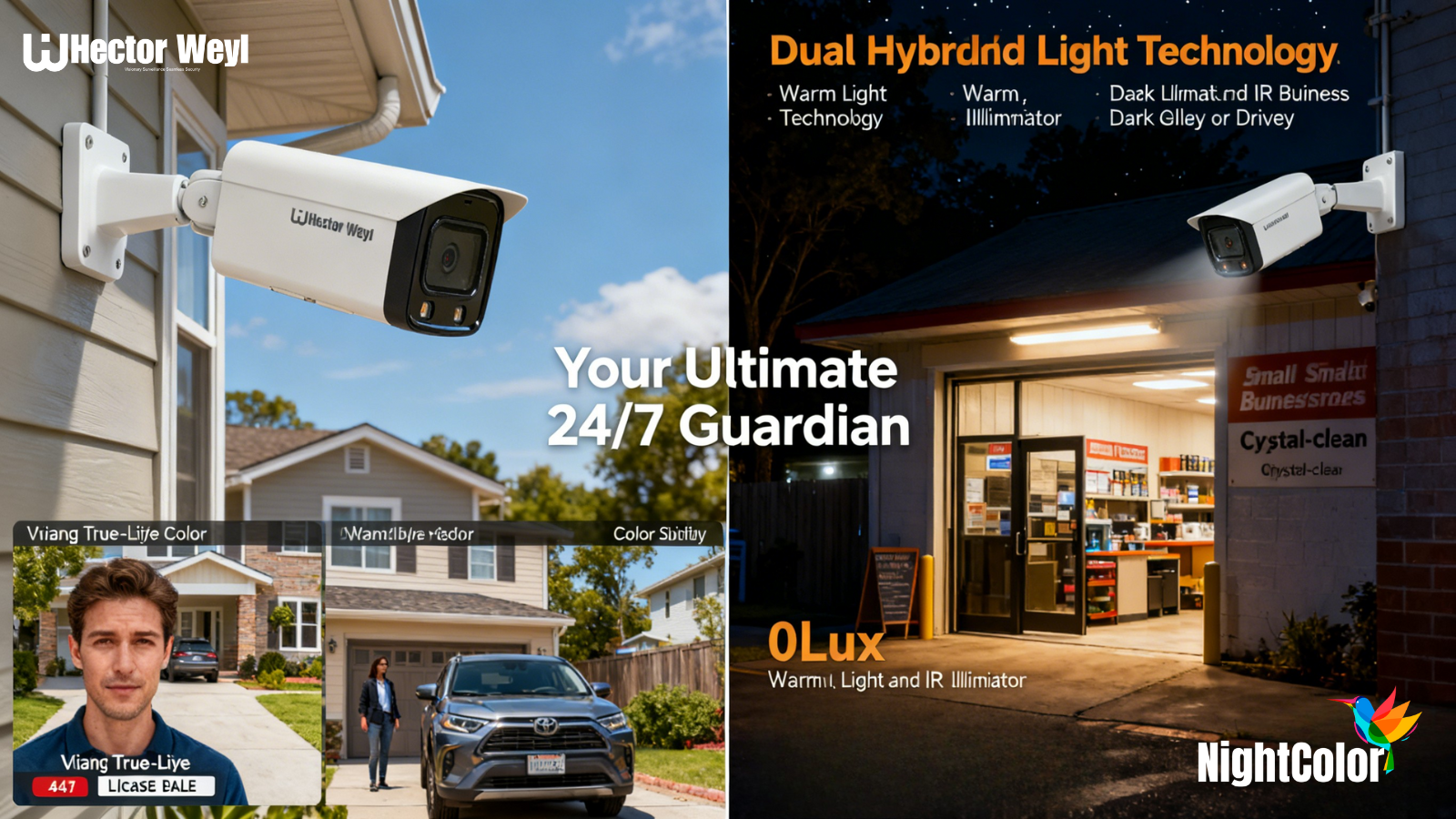
HW-IPC-G2449M-IL-ZAS 4MP AI Network Camera: Your 24/7 Guardian with Crystal-Clear Vision
Hector Weyl Network Cameras: A Guide to Phone Push Notifications – Stay Alert to Anomalies in Seconds