

In a world where security threats or critical events can happen in an instant, waiting for an email alert (SMTP) or manually checking your camera’s live feed is no longer enough. For Hector Weyl network camera users, Phone Push Notifications (real-time alerts sent directly to your mobile device via the Hector Weyl HMSS app) solve this problem. They deliver instant updates about camera events—like motion detection, lens tampering, or hard drive errors—right to your phone’s lock screen, so you can respond fast, no matter where you are.

This guide breaks down everything you need to know about Phone Push Notifications for Hector Weyl cameras, using their official 2024 product manual as the primary reference. We’ll cover what Phone Push is, why it’s essential, prerequisites to check, step-by-step configuration (both camera and app), troubleshooting common issues, and best practices for avoiding alert fatigue.
1. What Are Phone Push Notifications, and Why They Matter for Hector Weyl Cameras
Phone Push Notifications are short, real-time alerts sent from your Hector Weyl camera to the HMSS mobile app (iOS/Android) over the internet. Unlike SMTP email alerts (which can take minutes to arrive and may end up in spam), push notifications reach your phone in 2–5 seconds—critical for time-sensitive scenarios.

How Phone Push Works for Your Camera
The process is seamless and automated, as outlined in Hector Weyl’s manual:
- Event Triggered: Your camera detects an anomaly (e.g., someone walks into a restricted area, the lens is covered).
- Alert Sent: The camera encrypts the event details (type, timestamp, optional snapshot) and sends them to Hector Weyl’s push notification server.
- Server Relays Alert: The server forwards the alert to the HMSS app on your registered mobile device(s).
- You Receive It: The alert pops up on your phone’s lock screen, with a preview (e.g., "Motion Detected – Front Door Camera" + snapshot).
When to Use Phone Push (and Why It’s Better Than SMTP)
Hector Weyl’s manual emphasizes Phone Push as the preferred alert method for scenarios where speed and accessibility matter most:
| Phone Push Is Ideal For | Key Advantage Over SMTP |
|---|---|
| Home security (e.g., detecting a break-in while you’re away) | Alerts arrive in seconds (vs. 1–5 minutes for email) – enough time to call authorities. |
| Small business monitoring (e.g., shoplifting in a retail store) | No need to check email – alerts pop up directly on your phone, even if the app is closed. |
| Equipment oversight (e.g., camera tampering at a construction site) | Includes instant snapshots – verify the event without opening the app. |
| On-the-go users (e.g., managers who travel frequently) | Works over mobile data/Wi-Fi – no need to access a desktop to view alerts. |
SMTP is still useful for creating audit trails (e.g., compliance records), but Phone Push is unbeatable for real-time response.
2. Prerequisites Before Enabling Phone Push
Before setting up Phone Push, confirm these requirements (per Hector Weyl’s 2024 manual) to ensure alerts work reliably:
-
HMSS App Installed & Updated:
Download the latest version of the Hector Weyl HMSS app (available on the Apple App Store or Google Play Store). Old app versions may lack push notification support or have compatibility bugs. -
Camera & App Linked:
The Hector Weyl camera must be added to your HMSS app account (via P2P, IP, or DSS). You can’t enable push notifications for a camera not linked to your app. -
Network Connectivity:
- The camera must have a stable internet connection (Ethernet or Wi-Fi) to send alerts to the push server.
- Your mobile device must have mobile data or Wi-Fi enabled to receive alerts (push notifications don’t work offline).
-
Push Permissions Enabled:
Grant the HMSS app "Push Notifications" permission on your phone:- iOS: Go to Settings > HMSS > Notifications – toggle "Allow Notifications" on.
- Android: Go to Settings > Apps > HMSS > Notifications – enable "Show notifications."
-
Event Triggers Enabled on Camera:
Phone Push requires an event to trigger the alert (e.g., motion detection). Enable at least one event in the camera’s web interface: Settings > Event Management > Motion Detection (or "Tampering Detection," "Hard Drive Error"). -
Camera Firmware Updated:
Install the latest camera firmware (Settings > System Administration > Upgrade). Old firmware often has push notification bugs (e.g., delayed alerts, missing snapshots).
3. Key Phone Push Parameters for Hector Weyl Cameras
Phone Push settings are split between two places: the camera’s web interface (to enable push and select event types) and the HMSS app (to customize alert behavior). Here’s a breakdown of critical parameters from both, aligned with the official manual:
3.1 Camera Web Interface Settings (Settings > Event Management > Push Notification)
| Parameter | What It Does | Hector Weyl Notes & Defaults |
|---|---|---|
| Enable Push Notification | Toggles Phone Push on/off for the camera. | Default: Disabled. Must be checked to send alerts to the HMSS app. |
| Push Event Type | Selects which events trigger push alerts (e.g., Motion Detection, Tampering, Hard Drive Error). | Default: None selected. Check only the events you care about (e.g., "Motion Detection" for home security). |
| Attach Snapshot | Toggles whether a snapshot of the event is included in the push alert. | Default: Enabled. Highly recommended – snapshots let you verify the event without opening the app. |
| Push Frequency Limit | Limits how often alerts are sent (e.g., 1 alert per minute) to avoid spam. | Default: 60 seconds. Set to 30–300 seconds (adjust based on your needs – shorter for critical events, longer for low-priority). |
| Push Server Address | The URL of Hector Weyl’s push notification server (e.g., push.hectorweyl.com). | Auto-filled and non-editable – do not modify (custom servers won’t work). |
3.2 HMSS App Settings (Camera > Settings > Push Notification)
| Parameter | What It Does | Hector Weyl Notes & Best Practices |
|---|---|---|
| Alert Tone | Selects the sound played when a push alert arrives (e.g., "Beep," "Chime"). | Choose a distinct tone (not your phone’s default message tone) so you recognize security alerts instantly. |
| Vibration | Toggles vibration for push alerts (useful in quiet environments). | Default: Enabled. Disable if you don’t want disruptions (e.g., during meetings). |
| Lock Screen Preview | Shows the event type and snapshot on your phone’s lock screen. | Default: Enabled. Disable if you want more privacy (alerts will still arrive, but details won’t show on the lock screen). |
| Do Not Disturb (DND) | Pauses push alerts during a set time (e.g., 10 PM–6 AM for home cameras). | Use this to avoid nighttime alerts (e.g., from pets moving around). Set a schedule in the app. |
4. Step-by-Step: Configuring Phone Push for Hector Weyl Cameras
Setting up Phone Push takes 5–10 minutes, with steps split between the camera’s web interface and the HMSS app. Follow these instructions (aligned with the 2024 manual):
Step 1: Enable Push Notifications on the Camera (Web Interface)
- Log into your Hector Weyl camera’s web interface from a computer on the same network (default IP: 192.168.1.86; username: "admin").
- Go to Settings > Event Management > Push Notification.
- Check Enable Push Notification.
- Under Push Event Type, select the events you want to trigger alerts (e.g., "Motion Detection," "Tampering Detection").
- Ensure Attach Snapshot is checked (recommended).
- Set Push Frequency Limit (e.g., 60 seconds) to avoid spam.
- Click Save – the camera will now send push alerts when the selected events occur.

Step 2: Customize Push Alerts in the HMSS App
- Open the HMSS app on your mobile device and log into your account.
- Select the camera you just configured from your device list.
- Tap the Settings icon (usually a gear icon) in the top-right corner of the camera’s live feed.
- Select Push Notification from the settings menu.
- Customize your alert preferences:
- Choose an Alert Tone (e.g., "Security Alert").
- Toggle Vibration on/off.
- Enable/disable Lock Screen Preview (based on privacy needs).
- Set a Do Not Disturb schedule (e.g., 10 PM–6 AM) if needed.
- Tap Save to apply the app settings.
Step 3: Test the Push Notification
To confirm alerts work, trigger a test event (e.g., wave your hand in front of the camera to activate motion detection):
- Wait 2–5 seconds – you should see a push alert pop up on your phone’s lock screen.
- Tap the alert – it will open the HMSS app directly to the camera’s live feed (or the event’s snapshot).
- If the alert doesn’t arrive: See Section 5 for troubleshooting (e.g., app permissions, network issues).
5. Common Phone Push Issues & How to Fix Them
Most push notification problems are easy to resolve with a few checks. Here are the top issues for Hector Weyl cameras (from the manual and real-world troubleshooting):
Issue 1: "No Push Alert Received When the Event Is Triggered"
-
Why?
- Push permissions are disabled for the HMSS app (most common).
- The camera isn’t linked to the correct HMSS account (you added it to a different account).
- The camera’s internet connection is unstable (can’t send alerts to the push server).
- The HMSS app is logged out (you closed the app and were automatically signed out).
-
Fix:
- Re-enable push permissions for HMSS (follow Step 2 in Prerequisites).
- Confirm the camera is in your HMSS app’s device list – if not, re-add it using the Device ID/QR code.
- Check the camera’s internet: Use the "Ping Test" (Settings > Network Settings > Diagnostics) to ping
push.hectorweyl.com. - Log back into the HMSS app – enable "Stay Logged In" (if available) to avoid automatic logout.
Issue 2: "Push Alerts Arrive, But No Snapshot Is Attached"
-
Why?
- "Attach Snapshot" is disabled in the camera’s web interface.
- The camera’s snapshot function is broken (e.g., due to firmware bugs).
- The push server timed out while sending the snapshot (slow internet).
-
Fix:
- Go to the camera’s web interface (Push Notification settings) and check Attach Snapshot.
- Test the snapshot function: Open the camera’s live feed in the HMSS app and tap the "Snapshot" icon – if no image saves, restart the camera.
- Lower the camera’s snapshot resolution (Settings > Video > Snapshot) to reduce file size (faster to send).
Issue 3: "Push Alerts Are Delayed (10+ Seconds)"
-
Why?
- The camera’s internet upload speed is too slow (snapshot takes time to send).
- The HMSS app is running in "Battery Saver" mode (limits background activity).
- Your mobile device is on a weak mobile data/Wi-Fi connection.
-
Fix:
- Test the camera’s upload speed (Settings > Network Settings > Diagnostics > Speed Test) – aim for 1+ Mbps.
- Disable Battery Saver for the HMSS app:
- iOS: Settings > Battery > Battery Saver – ensure HMSS is excluded.
- Android: Settings > Apps > HMSS > Battery – select "No restrictions."
- Switch your phone to a stronger network (e.g., 5G instead of 4G, or a faster Wi-Fi).
Issue 4: "Too Many Push Alerts (Spam)"
-
Why?
- "Push Frequency Limit" is set too low (e.g., 5 seconds), so minor events (e.g., a leaf blowing) trigger repeated alerts.
- Motion detection sensitivity is too high (camera detects small movements).
-
Fix:
- Increase the "Push Frequency Limit" to 60–300 seconds (camera’s web interface).
- Lower motion detection sensitivity (Settings > Event Management > Motion Detection > Sensitivity) – set to "Medium" for most scenarios.
- Use "Motion Detection Zones" to exclude high-activity areas (e.g., a tree swaying in the wind) – only alert on restricted zones.
6. Best Practices for Phone Push Notifications (Hector Weyl Recommended)
To make the most of Phone Push while avoiding frustration, follow these tips from Hector Weyl’s engineering team:
-
Limit Alert Types to Critical Events:
Only enable push alerts for high-priority events (e.g., "Motion Detection" in a safe, "Tampering" for all cameras). Avoid low-priority events (e.g., "Hard Drive Warning" – use SMTP for these instead) to prevent alert fatigue. -
Use Do Not Disturb (DND) Wisely:
Set a DND schedule for home cameras (e.g., 10 PM–6 AM) to avoid waking up to non-urgent alerts (e.g., a cat moving). For business cameras, disable DND during operating hours. -
Secure Your HMSS App:
Enable app lock (HMSS > Settings > App Lock) with a PIN or biometrics (fingerprint/face ID). This prevents someone else from accessing your camera’s alerts if your phone is lost/stolen. -
Keep the App & Firmware Updated:
Hector Weyl regularly releases HMSS app and camera firmware updates to fix push bugs (e.g., delayed alerts) and add features (e.g., custom alert tones). Enable auto-updates for the app and check for firmware updates monthly. -
Test Alerts Weekly:
Do a quick test (e.g., trigger motion detection) once a week to ensure push alerts still work. This catches issues early (e.g., app permissions accidentally disabled).
Final Thoughts
Phone Push Notifications turn your Hector Weyl network camera into an active security partner—one that alerts you to threats or anomalies in seconds, not minutes. By following this guide, you can set up push alerts in minutes and gain the peace of mind that comes with real-time awareness.
While SMTP is still useful for records, Phone Push is the best choice for on-the-go users who need to respond fast. If you run into issues, refer to Hector Weyl’s full Network Camera Product Manual (linked in your request) or contact their support team—they can help resolve app-specific or server-related problems. With Phone Push configured correctly, you’ll never miss a critical event again.





Share:
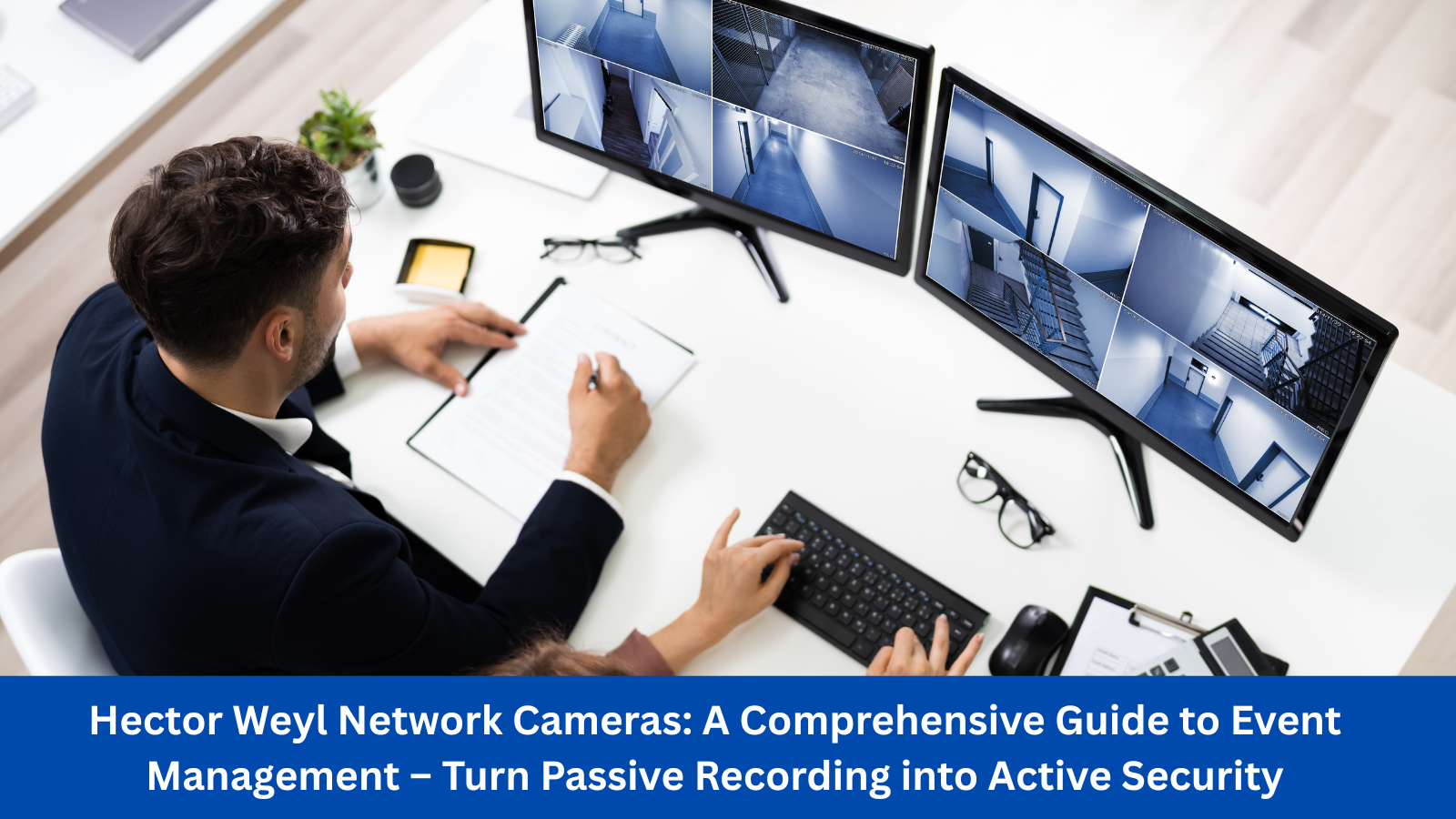
Hector Weyl Network Cameras: A Comprehensive Guide to Event Management – Turn Passive Recording into Active Security
Lightning Protection Empowers Security Systems: From Threat Analysis to Hector Weyl's Full-Stack Solutions